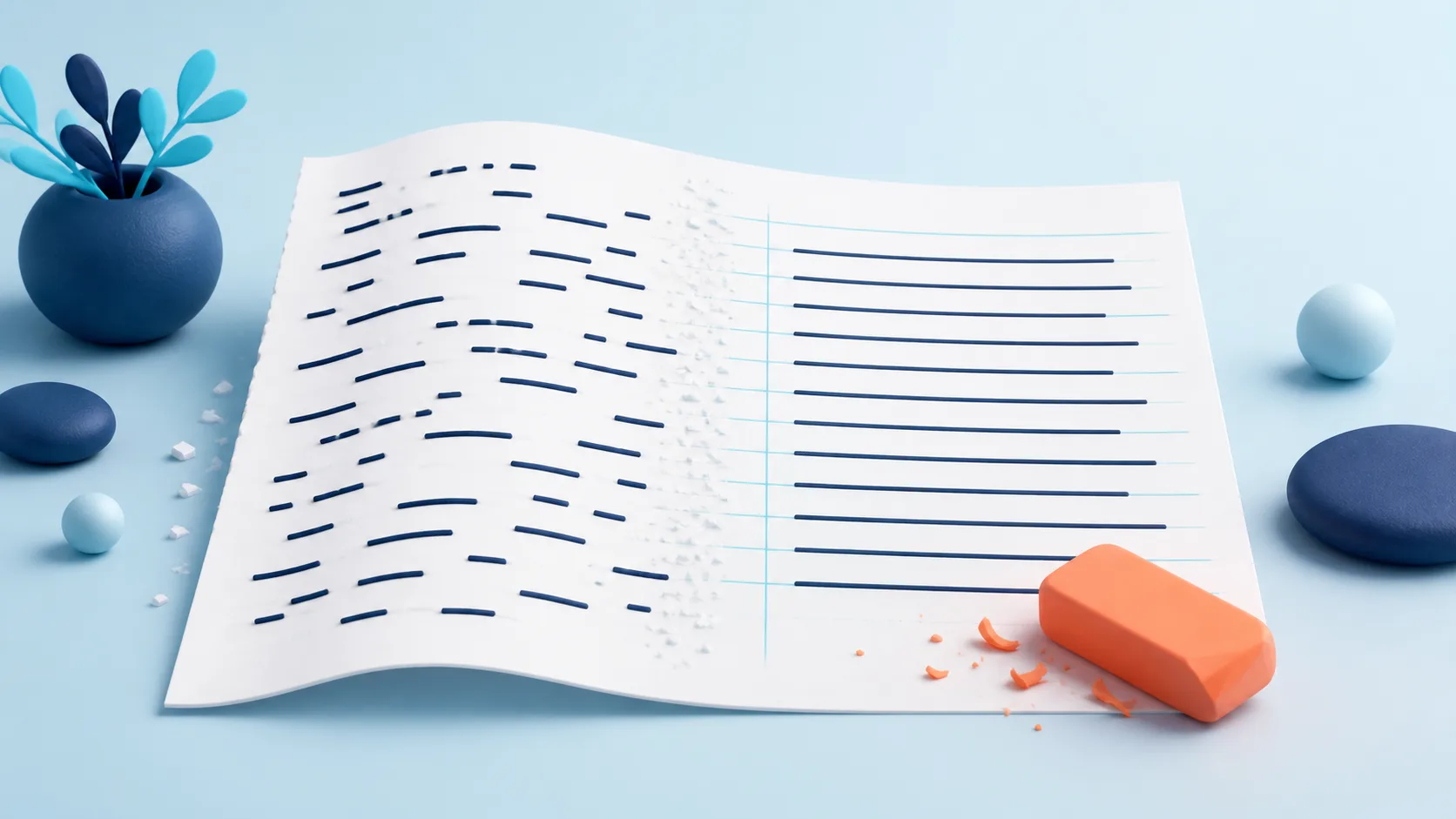
Extra spaces can make a copied paragraph look unfinished, especially after moving text between a document, an email, and a web editor. Cleaning whitespace reduces repeated gaps without joining every word together. It is different from changing font size, line spacing, or paragraph margins.
Clean a paragraph in a few steps
- Keep a copy of the original text.
- Paste the text into the Tolibox whitespace cleaner.
- Select Process and compare the result with the original.
- Copy the cleaned text into your editor, then review the paragraph breaks there.
The English cleaner reduces runs of ordinary spaces and tabs to one space. It removes ordinary spaces next to line breaks and reduces three or more consecutive line breaks to two. That leaves one blank line between paragraphs rather than flattening the whole document.
A simple before-and-after check
Try Clear writing on the first line, followed by two blank lines and starts here. on the last line. The output has one space between each pair of words and one blank line between the two paragraphs.
This is a useful check before pasting a short description or an email message. It is not a repair tool for a broken PDF reading order, missing letters, or words split across scanned columns.
Watch for special formatting
Do not clean source code, aligned tables, or poetry without reviewing every change. Spaces and line breaks may be part of their meaning. Some unusual Unicode spaces can also remain between words; ordinary whitespace cleanup is not a complete Unicode normalization process.
Does this fix punctuation?
The English tool cleans spacing patterns, not punctuation or grammar.
Why does a paragraph still look too far apart?
The destination editor may add paragraph margins. Adjust those in the editor instead of deleting useful paragraph breaks.
Finish by reading the pasted result once, checking that headings and separate ideas are still easy to distinguish.